
Playbook triggers are the components that run playbooks based on the conditions defined in them. When a case is created from an incident, the system verifies a matching trigger condition. If a match is found, a trigger is started which automates the process of activating the playbook associated with it.
You can manage the triggers from the Triggers page.
Go to Navigation Bar and click Playbooks.
Click Triggers.
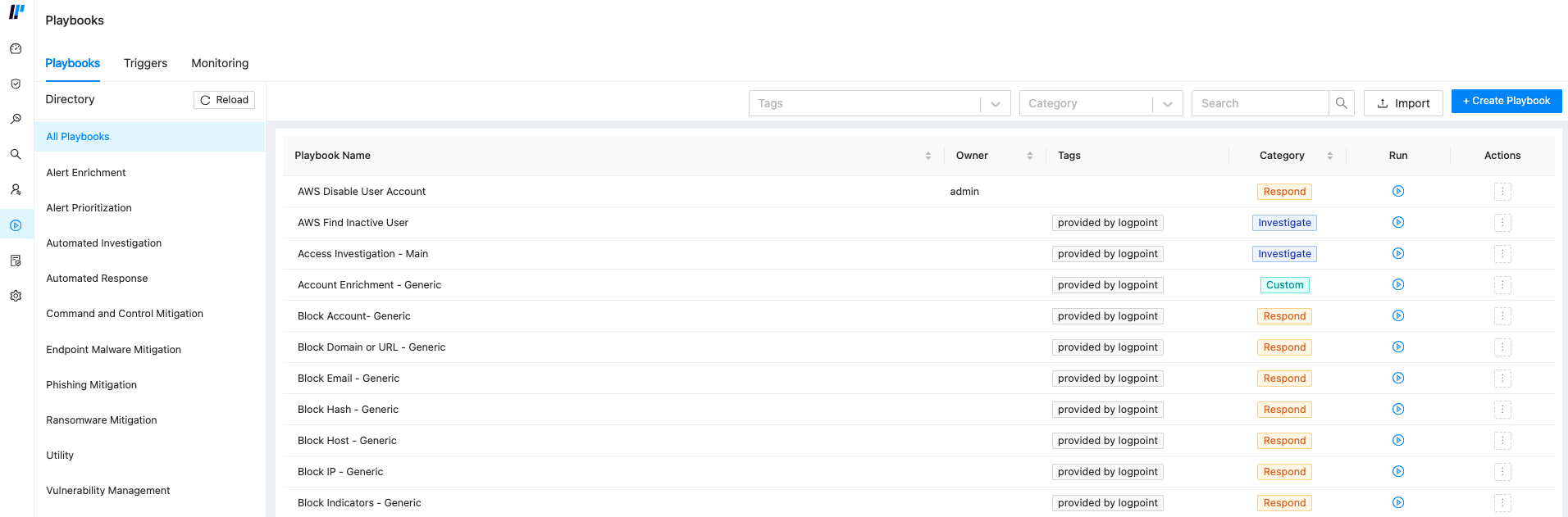
Playbook Page
You can customize a playbook trigger to automate the process of activating the playbook associated with it when the trigger condition is met by adding a new automation.
Go to Playbooks >> Triggers.
Click +Create Trigger.
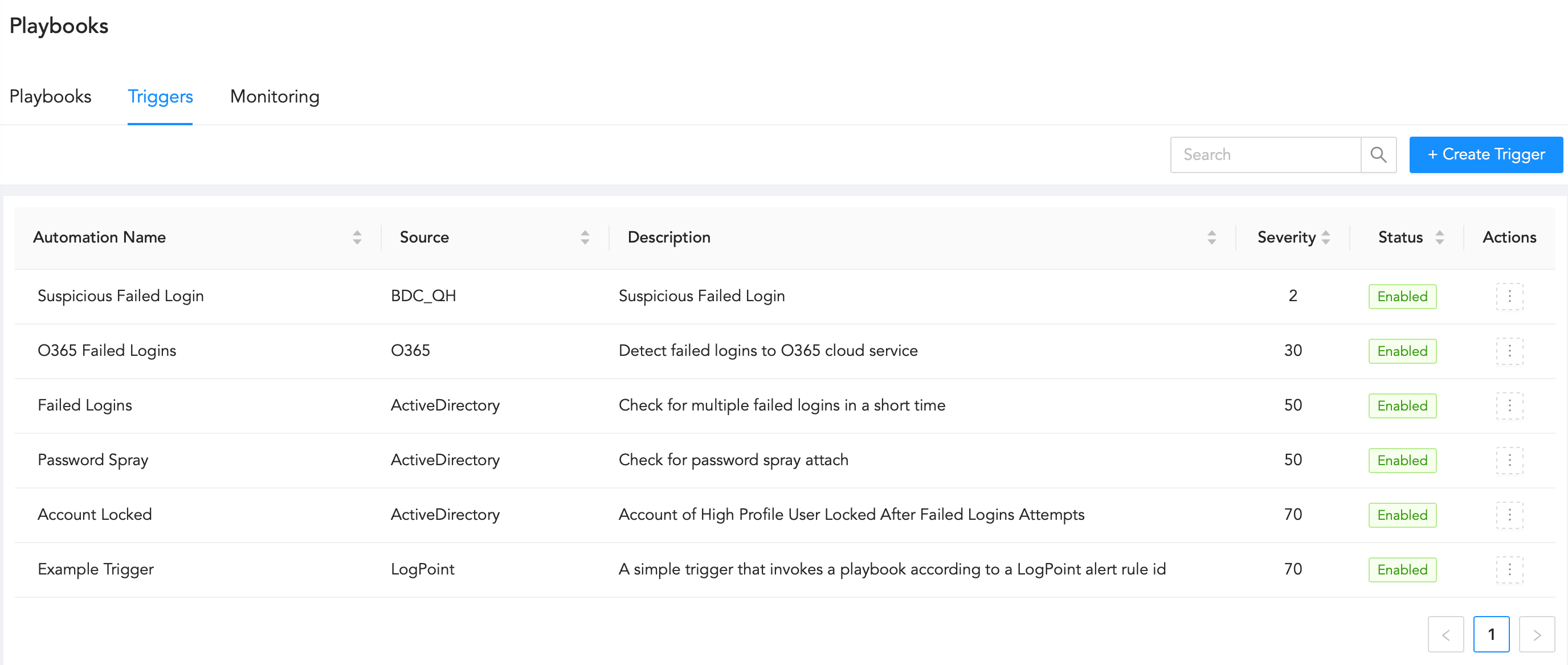
Triggers Page
In the General section,
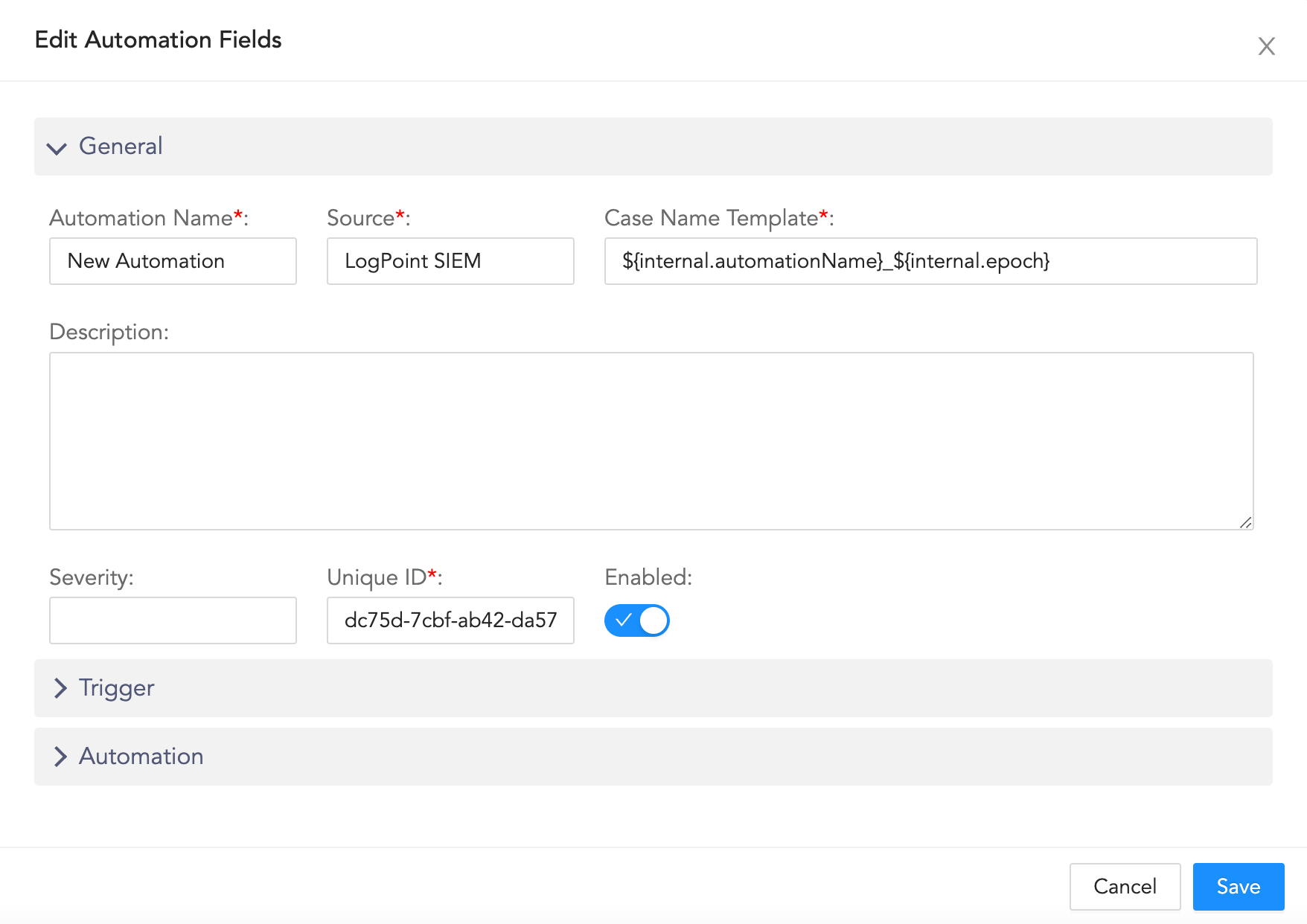
Configuring General
3.1. Enter an Automation Name, a Source, and a Case Name Template.
3.2. Enter a Description, a Severity level, and a Unique ID for the automation.
3.3. Click Enabled to enable the automation.
In the Trigger section, enter an SQL query in Trigger. Every incident that matches the query triggers the playbooks.
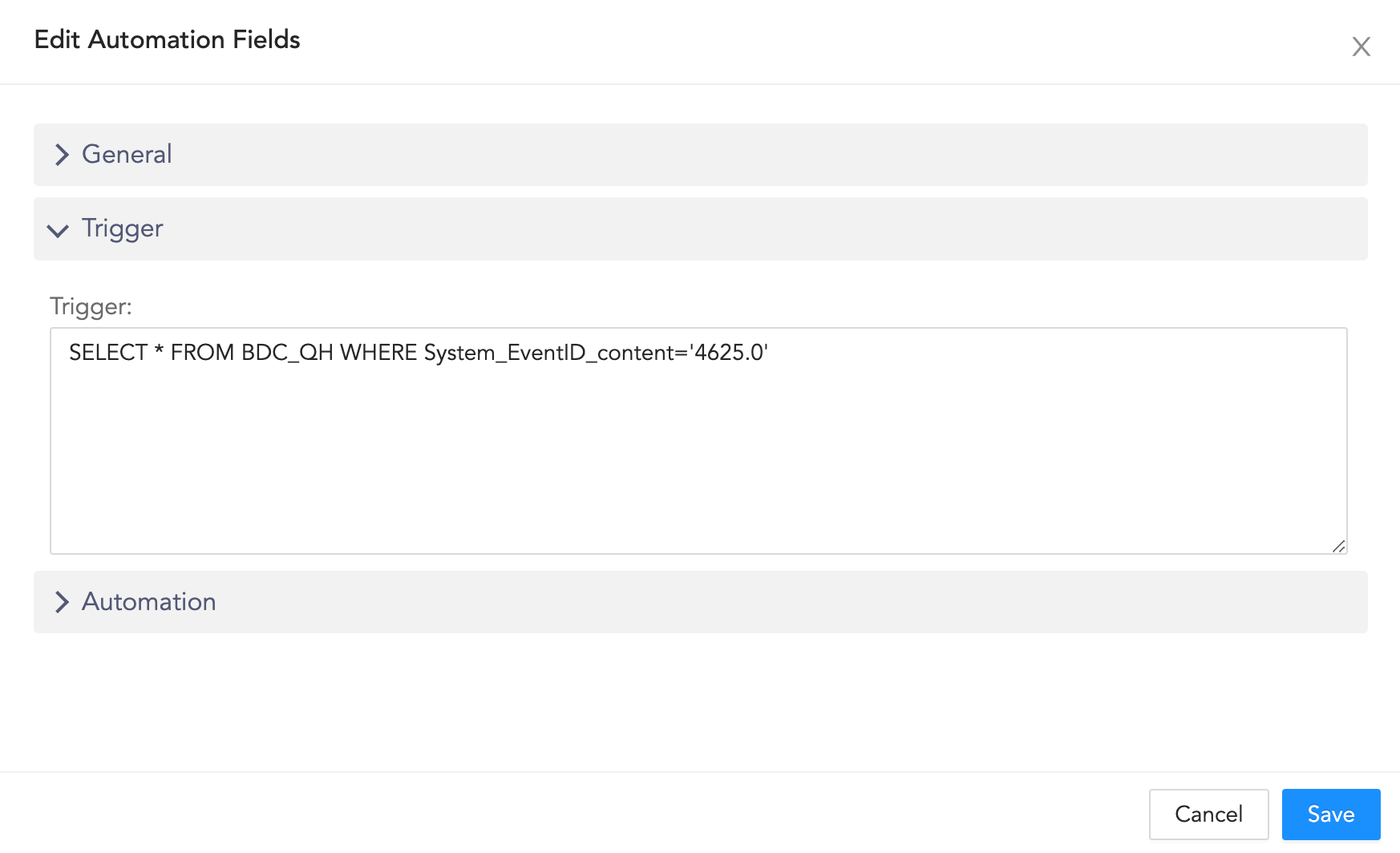
Configuring Trigger
In the Automation section, select the Playbooks that must be triggered based on the trigger.
You can also configure a new playbook by clicking Create New Playbook +.
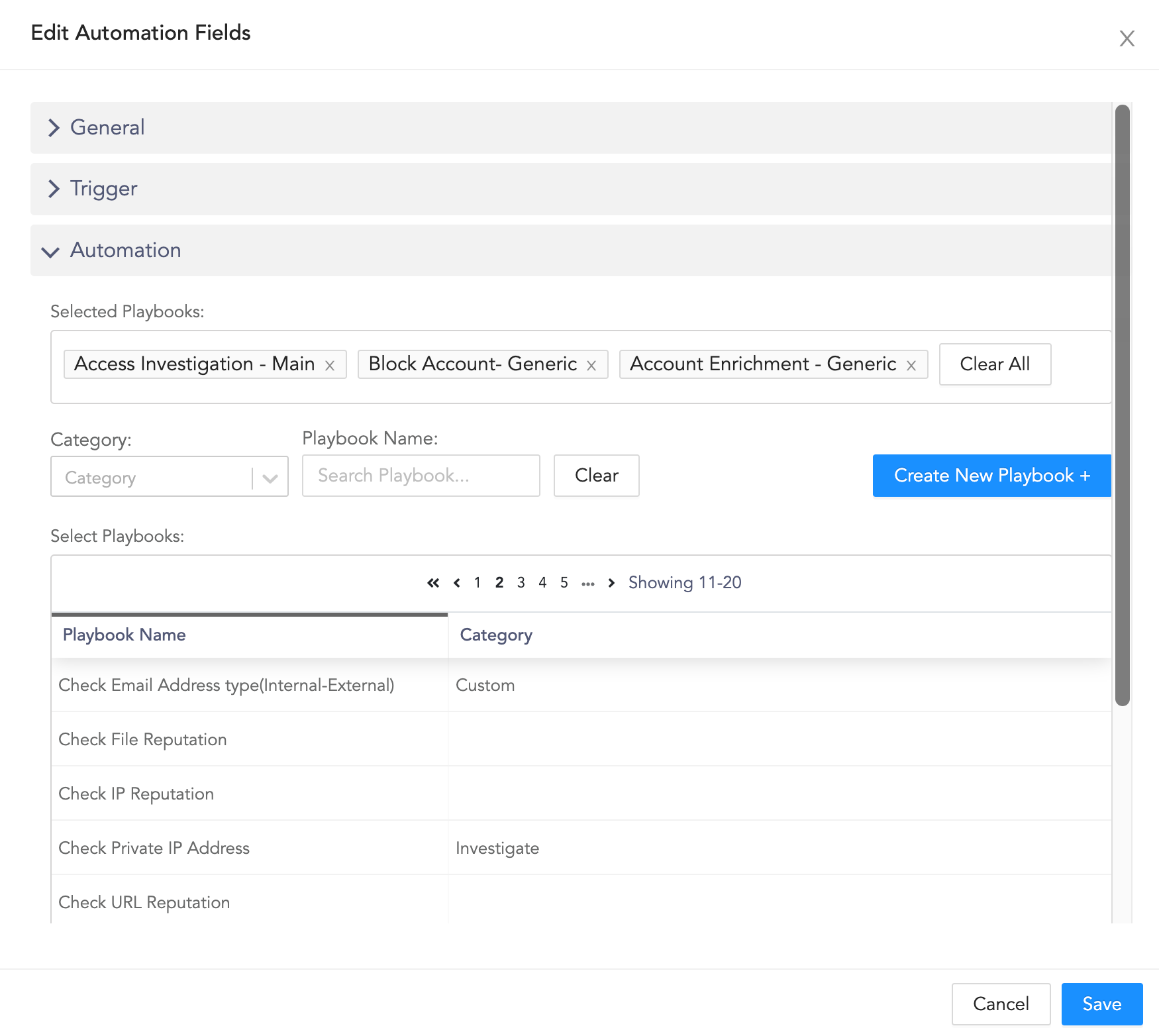
Configuring Automation
Click Save.